
🔥 Introduction
Gemini AI not loading? You’re not alone.
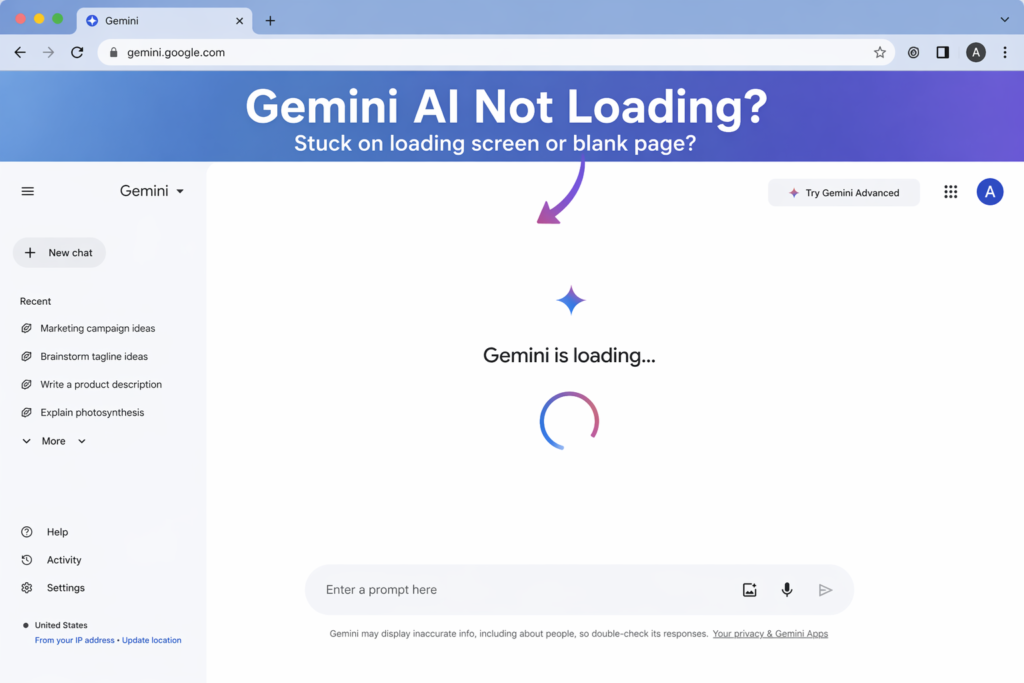
Many users report that Gemini gets stuck on the loading screen, shows a blank page, or fails to open completely.
The good news?
👉 Most Gemini loading issues can be fixed in just a few minutes.
In this guide, you’ll learn 5 proven fixes that work, plus quick solutions to get Gemini loading again fast.
⚠️ Common Reasons Why Gemini AI Is Not Loading
Before trying the fixes, it helps to understand what might be causing the problem:
- Gemini servers are temporarily down or overloaded
- Your internet connection is slow or unstable
- Browser cache or cookies are causing conflicts
- VPN or proxy is interfering with the connection
- Your Google account session has expired
Understanding these causes will help you fix the issue faster.
⚡ Quick Fix (Try This First)
If Gemini AI is not loading, try these quick fixes first:
- Refresh the page (Ctrl + F5 / Cmd + Shift + R)
- Sign out and sign back into your Google account
- Disable VPN or proxy
- Try opening Gemini in another browser
👉 These steps fix most loading issues in under 2 minutes.
✅ 5 Fixes for Gemini AI Not Loading
✅ Fix 1: Check If Gemini AI Is Down
Sometimes the issue is not on your side.
Gemini may fail to load if Google servers are down or under maintenance.
👉 Check the official status page:
https://www.google.com/appsstatus
If there’s an outage, you’ll need to wait until services are restored.
✅ Fix 2: Refresh the Page
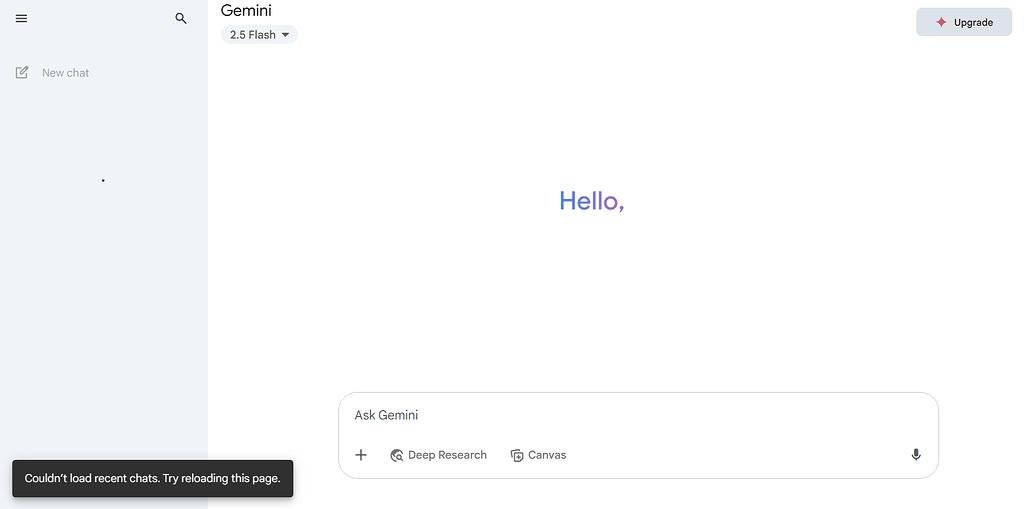
Temporary glitches can stop Gemini from loading properly.
A hard refresh reloads all page resources and often fixes loading issues.
Steps:
- Windows: Press Ctrl + F5
- Mac: Press Cmd + Shift + R
This clears temporary bugs and forces the page to reload.
✅ Fix 3: Check Your Internet Connection
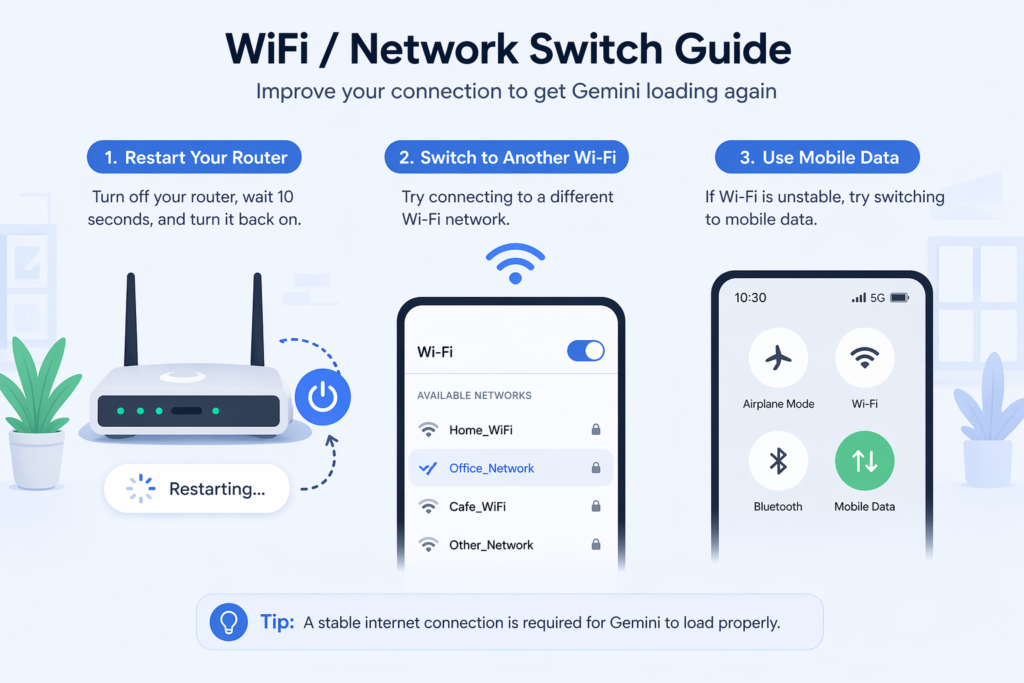
A slow or unstable internet connection may stop Gemini from loading.
If your connection drops or becomes unstable, Gemini may get stuck on a blank or loading screen.
Try the following:
- Restart your router
- Switch to another Wi-Fi network
- Use mobile data
A stable internet connection is required for Gemini to load properly.
✅ Fix 4: Clear Browser Cache and Cookies
Cached data and cookies can conflict with Gemini and prevent it from loading properly.
Over time, outdated or corrupted cache files may cause loading problems.
Clearing them can fix both loading and login issues.
Steps (Chrome):
- Open Settings
- Go to Privacy & Security
- Click “Clear browsing data”
- Select “Cached images and files” and “Cookies”
- Click “Clear data”
After clearing the cache, reload Gemini and try again.
✅ Fix 5: Disable VPN or Proxy
VPNs and proxies may interfere with Gemini connections.
Some VPN servers may be slow or blocked, which can prevent Gemini from loading.
👉 Turn off your VPN and refresh the page.
If Gemini starts loading normally, the VPN was likely the cause of the issue.

❓ FAQ
Why is Gemini AI stuck on loading?
A blank screen is often caused by cache issues or browser-related conflicts.
Is Gemini AI down right now?
You can check the Google service status page to confirm outages.
Why does Gemini show a blank screen?
Yes, VPNs can slow down or block Gemini connections, which may prevent it from loading.
Can VPN cause Gemini loading problems?
Yes, VPNs can slow down or block Gemini connections.
How do I fix Gemini not loading?
Try refreshing the page, clearing cache, disabling VPN, or switching browsers.
🧾 Conclusion
If Gemini AI is not loading, don’t worry — most issues are easy to fix.
Start with the quick fixes, then go through the solutions step by step.
👉 In most cases, Gemini will load again within minutes.
If the issue continues, it may be due to server problems — and waiting is the only option.